
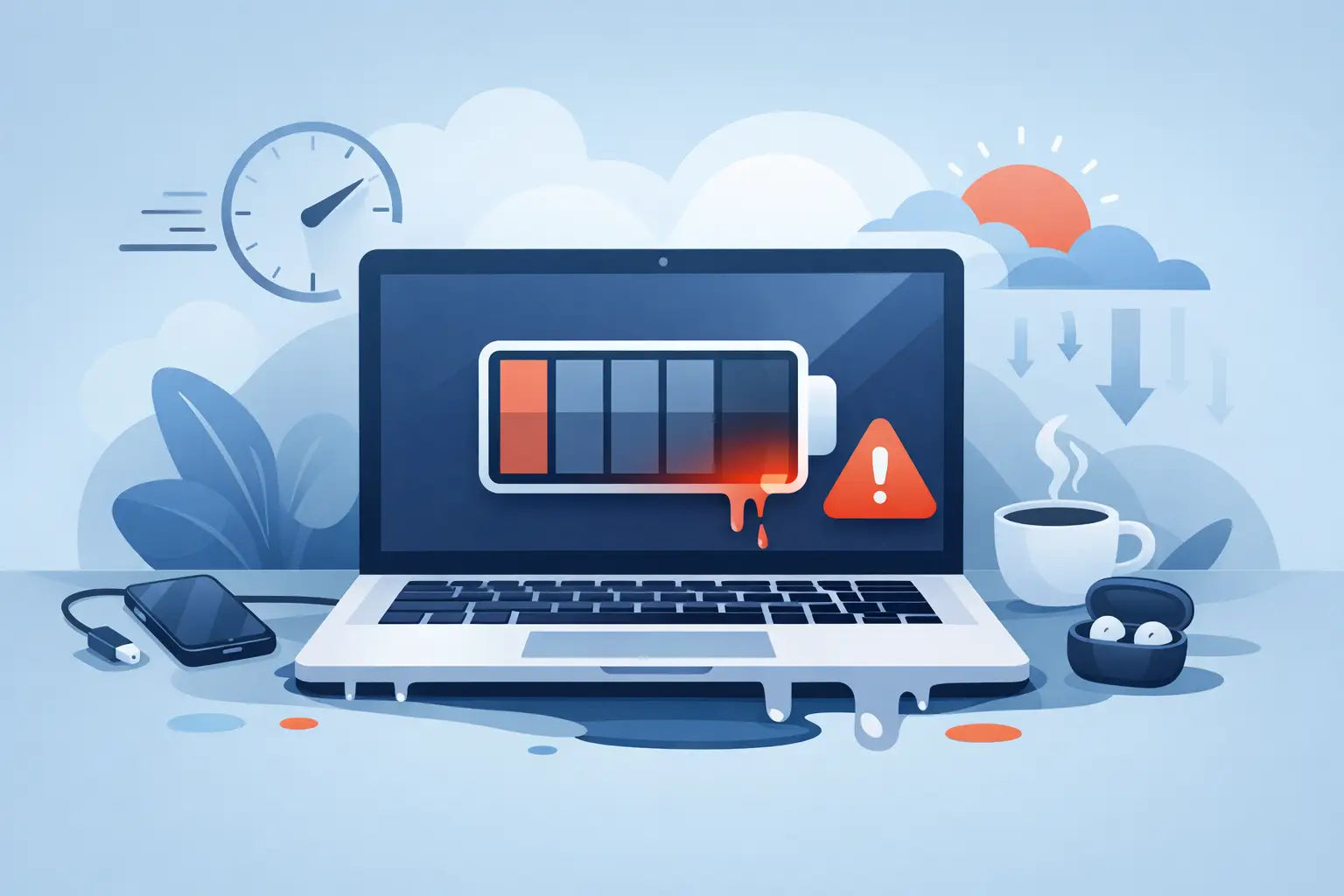
You open your laptop at the kitchen table, in class, or halfway through a train journey, and the battery is already dropping faster than it should. If you're asking why is laptop battery draining, the answer is usually not one single fault. In most cases, it comes down to a mix of screen settings, background apps, battery age, charging habits, heat, or a charger that is not doing its job properly.
The good news is that fast battery drain does not always mean you need a full laptop replacement. Sometimes the fix is simple. Other times, the battery is worn out and needs to be replaced. The trick is knowing which is which before you waste money on the wrong part.
Why is laptop battery draining even when you are not doing much?
A laptop can lose charge quickly even during light use because modern machines do a lot in the background. Cloud syncing, updates, antivirus scans, Bluetooth, Wi-Fi searching, and startup apps all quietly pull power. Add a bright screen and a few browser tabs, and a battery that used to last six or seven hours might struggle to reach three.
Battery age matters as well. All laptop batteries wear down over time. After enough charge cycles, they simply cannot hold the same amount of power they did when new. That decline can be gradual, so many people only notice it once the battery life becomes genuinely inconvenient.
There is also the possibility of a software issue. A recent update, a badly behaved app, or incorrect power settings can suddenly make battery life worse. If the problem started out of nowhere, that is often a clue.
The most common causes of fast battery drain
The display is one of the biggest battery users on any laptop. If your brightness is set high all day, especially on a larger screen, the battery will empty much faster. This is one of the easiest things to test because reducing brightness often gives an immediate improvement.
Background applications are another major cause. Video calls, music apps, browser extensions, file syncing, and even chat tools can keep running after you think you have closed them. Some laptops also launch dozens of processes on startup, which means the battery begins working hard from the moment you sign in.
Heat is a less obvious problem, but an important one. Batteries do not like running hot. If your laptop fan is constantly loud, if the underside feels very warm, or if vents are blocked by a duvet, sofa, or cluttered desk, the system may be consuming extra power while also putting stress on the battery.
Then there is battery health itself. A worn battery can behave unpredictably. It might charge to 100 per cent and then drop quickly to 60. It might shut down early at 20. It might seem fine on charge but become nearly useless the moment you unplug it. At that stage, settings changes can only do so much.
A faulty charger or charging port can confuse the picture too. Sometimes the issue looks like battery drain, but the real problem is that the battery is not charging properly in the first place. A damaged cable, loose connector, or incorrect replacement charger can all lead to poor charging performance.
How to tell if it is the battery or something else
Start with a simple test. Charge the laptop fully, unplug it, and use it as you normally would for an hour. If the battery drops far faster than expected, note what you were doing. Streaming video and gaming will always drain the battery faster than writing documents or browsing lightly, so usage matters.
Next, check whether the battery problem is new or long-standing. If it only started after a software update or new app installation, there is a good chance software is involved. If the laptop is a few years old and battery life has been getting steadily worse, wear and tear is the more likely answer.
Also pay attention to charging behaviour. If the battery percentage jumps, stalls, or only charges when the cable is held at a certain angle, that points more towards the charger or port than the battery cells themselves.
Quick fixes that often help
Lowering the screen brightness is the fastest win. It sounds basic, but it works. Turn off keyboard backlighting too if your model has it, especially during daytime use.
Close apps you are not using properly rather than just minimising them. Browser tabs are a common culprit, particularly if several tabs contain video, adverts, or active web apps. Restarting the laptop can also clear stuck background processes that keep eating power.
Check your power mode settings. Many laptops are left on high performance mode when they do not need to be. Switching to a balanced or battery saver setting can make a noticeable difference without making the machine unusable.
Turn off Bluetooth when you do not need it, and disconnect accessories that draw power. USB devices, external drives, wireless dongles, and even a mobile phone charging from your laptop can shorten battery life.
If the laptop is running hot, clean the vents and make sure airflow is not blocked. Dust build-up can force the cooling system to work harder, and that extra effort costs battery power.
When battery health is the real issue
If your laptop is several years old and the battery life has dropped sharply, replacement may be the sensible next step. Batteries are consumable parts. They are not designed to last forever, and no amount of settings tweaking can restore a battery that has simply reached the end of its useful life.
There are a few signs that point strongly in that direction. The battery drains unusually fast from a full charge, the laptop shuts down before reaching 0 per cent, the charge level changes erratically, or the machine only works reliably when plugged in. In more serious cases, the battery may begin to swell, which needs urgent attention.
A swollen battery is not something to ignore. If the case starts lifting, the trackpad feels raised, or the chassis no longer sits properly, stop using the device and get it checked. That is no longer just a battery life issue.
Why is laptop battery draining after a recent update?
This happens more often than people think. After a system update, the laptop may spend time reindexing files, installing background components, syncing data, or adjusting app permissions. That can increase power use for a day or two.
If the battery drain continues beyond that, check for apps that may no longer be behaving normally with the updated system. Sometimes a browser, driver, or utility tool starts consuming more power after an update, even if everything looks fine on the surface.
This is one of those cases where patience helps, but only up to a point. If your battery life has been cut in half for more than a few days, it is worth investigating rather than hoping it sorts itself out.
Charging habits: what matters and what does not
People often worry that they have ruined their battery by charging it overnight. In most modern laptops, that alone is not usually the main problem. Current devices are generally smart enough to manage charging once the battery reaches full.
What matters more is long-term heat and age. Constant high temperatures, heavy daily use, and years of charging cycles do more damage than the occasional overnight charge. Using a cheap or incorrect charger can also create problems, especially if it does not deliver the right power.
If you work plugged in most of the time, it still helps to let the battery cycle now and then. Not because it magically repairs anything, but because it keeps the battery management system more accurate and can help you spot issues earlier.
When to stop troubleshooting and get it checked
If you have reduced brightness, closed power-hungry apps, checked your charger, and updated your settings but the battery still drops quickly, the issue may need proper testing. This is especially true if the laptop switches off unexpectedly, gets unusually hot, or refuses to charge consistently.
For many people, the sensible option is not spending hours guessing. A battery check, charger test, or port inspection can quickly tell you whether you need a replacement part or a repair. That is often cheaper than buying a new laptop too soon.
At First Help Tech, this is the sort of everyday issue we see regularly - a laptop that seems worn out, when in reality the fix might be a battery, charger, or charging port rather than the whole machine.
If your laptop battery is fading faster than it should, treat it like any other practical problem: test the obvious first, watch for warning signs, and do not ignore it if the behaviour is getting worse. A good laptop should fit around your day, not force you to sit beside a plug socket.