
A washed-out replacement screen doesn’t always mean the panel is faulty. If your replacement screen’s colours look washed out, first check the display’s colour and picture settings, then turn off blue-light and accessibility colour filters. If the image still looks wrong across different apps, the replacement screen or its calibration may be the cause.
It’s frustrating when a new screen doesn’t look right, especially if you expect its colours to match your old display. This guide explains how to adjust settings, disable filters and narrow down whether the issue may be linked to the replacement screen. Start with quick setting changes, then check what to do if the colour problem remains.
Key Takeaways
- Check colour accessibility settings and blue-light filters first; they can change the screen’s tone without a hardware fault.
- Adjust picture mode, brightness and contrast one setting at a time to pinpoint what is affecting the image.
- Compare the display across apps and content to help distinguish a settings issue from a replacement-screen or calibration problem.
- If the colour remains wrong, our mobile phone repairs can help. First Help Tech offers professional support for anyone whose replacement screen colours look washed out, with a FREE Mail-In Device Repair Service available nationwide.
Resetting colour settings and disabling blue-light filters
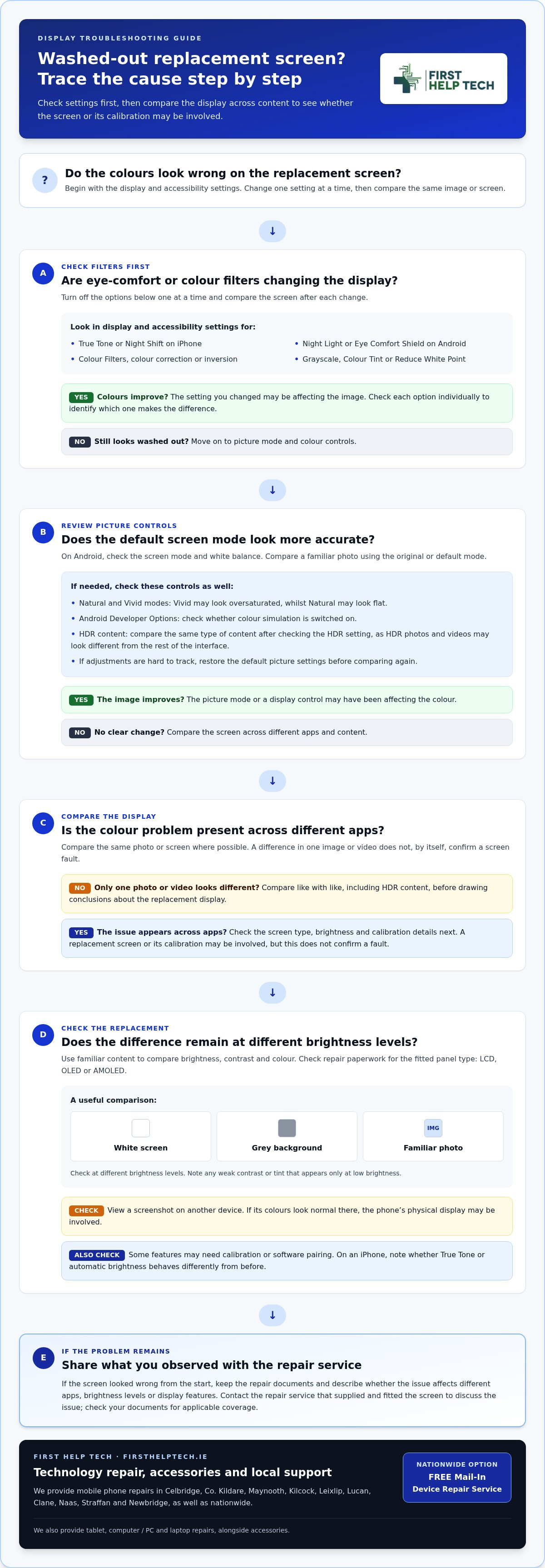
Check True Tone, Night Shift, eye-comfort features and colour filters before changing other settings. Switch them off one at a time, then compare the screen’s colour and contrast.
-
Check colour and eye comfort filters
Open your device’s display settings and switch off True Tone and Night Shift on an iPhone, or Night Light and Eye Comfort Shield on Android. These features can make colours look warmer or yellow, particularly when they adjust the screen for viewing comfort. Check the display after each change to identify which setting affects the image.
-
Reset colour settings
Review accessibility and display settings for colour correction, colour inversion, grayscale or other applied filters. On iOS, go to Settings > Accessibility > Display and Text Size, then inspect Colour Filters and Display Accommodations. According to Európai Unió, Display Accommodations can apply filters to screen content. Turn off any filter you don’t use and compare the same image or screen before and after.
On Android, check the screen mode and white balance too. Change one setting at a time, then view the same content again. This makes it easier to identify what is affecting the colours.
-
Review iPhone Colour Filters and Colour Tint
Open Settings > Accessibility > Display and Text Size > Colour Filters. Turn Colour Filters off to test the unfiltered display. If they’re on, select Colour Tint and check its Hue and Intensity controls. A strong tint can alter every app, not just one photo. Also check Reduce White Point, which changes how bright colours appear, and compare the screen with this option disabled.
How picture settings can cause washed-out colours
Picture controls can affect colour, contrast and brightness without indicating a screen fault. Adjust one setting at a time, then compare the same image.
- Open the display settings and check the screen mode. Android devices may offer Natural and Vivid modes, as well as white-balance controls. Select the original or default mode first, then compare a familiar photo. If Vivid looks oversaturated or Natural looks flat, adjust white balance gradually instead of changing several controls at once.
- Check Developer Options for colour simulation on Android. This setting can make the whole interface appear unusually muted or tinted. Switch it off, then view the same screen again. On TCL devices, also inspect Settings > Accessibility > Color and motion > Color correction > Use color correction if the display appears black-and-white or washed out.
- Compare like with like when checking HDR. HDR photos and videos on Android can look brighter or show different colours from the rest of the interface. In Windows display settings, HDR content may look distorted when HDR is disabled, while standard applications can appear crisp and vivid with HDR off. After changing the HDR setting, test the same type of content.
- Restore the default picture settings if adjustments have become hard to track. On a television, brightness, contrast, backlight intensity and picture mode can all affect the image. Try Cinema or Movie mode, then adjust brightness and contrast. If the picture remains faded across different inputs, test another input and cable before suspecting the display hardware.
Colour and saturation problems after a screen replacement
If replacement screen colours look washed out after fitting, compare the display with familiar content before deciding what to do. Check the panel type and note how the image looks across different apps.
-
Identify the replacement screen type
Check your repair paperwork to see whether the fitted screen is LCD, OLED or AMOLED. These are different display types, so don’t assume the replacement will look identical to the original. Compare the screen in everyday apps and note whether the colour difference appears everywhere or only in one photo or video.
-
Test brightness, contrast and colour accuracy
View the same photo, a white screen and a grey background at different brightness levels. Look for weak contrast or a tint that appears only at low brightness. You can also take a screenshot and view it on another device: if its colours look normal there, the phone’s physical display may be involved. If replacement screen colours look washed out across different apps, note that pattern when seeking repair support.
-
Check calibration and software pairing
A replacement screen may need calibration or software pairing for some features to work properly. An iPhone screen replacement may need programming for the light sensor and True Tone. Note whether automatic brightness or True Tone behaves differently from before, and share those observations when seeking repair support.
-
Contact the repair shop or manufacturer
If the replacement screen is faulty, contact the repair service that supplied and fitted it to resolve the issue. The shop is responsible, not the manufacturer. This does not establish a specific warranty term, so check your repair documents for the applicable coverage. Similarly, if your device was damaged during a vehicle collision or road accident, retaining repair invoices is helpful should you consult services like accidentlawyershotline.com for an accident case evaluation. If replacement screen colours look washed out from the start, keep those documents and describe the issue clearly.
First Help Tech: Mobile Phone Repairs
If colour problems remain after you’ve checked the display settings, First Help Tech provides mobile phone repairs to assess whether the issue may involve the screen or another phone fault.
We’re a trusted technology repair provider serving Celbridge, Co. Kildare, Maynooth, Kilcock, Leixlip, Lucan, Clane, Naas, Straffan and Newbridge, as well as customers nationwide. Our FREE Mail-In Device Repair Service offers a convenient repair option across Ireland. We also provide tablet, computer / PC and laptop repairs, alongside accessories.
Contact us or visit firsthelptech.ie to discuss your repair.
Take the next step towards a more accurate display
If your replacement screen’s colours look washed out despite your adjustments, gather useful details about the problem. Note when it began, whether it changes with brightness, and whether it appears across apps or only in certain images. Keep your repair paperwork and, if practical, photograph the display beside another device showing the same image. These details explain the issue more clearly than simply saying the colours seem wrong.
First Help Tech can use those details to assess the issue and identify a sensible next step for your device. You don’t need to diagnose the panel yourself or keep changing settings if the image remains consistently different. A clear description is a useful starting point.
Contact First Help Tech about your repair. We’re here to help you move forward with confidence.
Frequently Asked Questions
Quick Answer: What Causes Screen Discoloration?
Screen discolouration can result from display settings, a colour filter, software behaviour or the screen itself. On a phone with a newly fitted display, different panel characteristics or calibration may affect how colours appear. If the tint shows across menus and apps rather than in one particular photo, check for a system-wide cause before judging individual content.
Why do replacement phone screens look washed out or have faded colours?
A replacement screen can have different contrast and saturation from the original, particularly if the fitted panel has different characteristics. That difference doesn’t automatically mean there’s a fault. Note whether the image looks faded everywhere or only in one app, and whether brightness changes the effect. Consistently poor colour across menus and photos points to the display or its setup.
How to adjust colour settings and display calibration after a screen replacement?
Use your phone’s display settings to compare colour modes and white balance, changing one control at a time. On Android, also check colour simulation in Developer Options. On an iPhone, True Tone may need programming after a screen replacement. If adjustments don’t resolve a consistent colour difference, note which settings you changed and describe the result when seeking repair support.
Can a poor-quality or incompatible replacement screen cause washed-out colours?
Yes. A replacement panel with different colour and contrast characteristics can make photos and interface colours appear less vivid. A part that isn’t suited to the phone model may also affect display behaviour or features. If the change began immediately after fitting and remains visible across different apps, keep the repair paperwork and report the symptoms to the repair service.