

Your laptop won’t start after an upgrade, and opening it up again may not be the best next step. Problems after DIY laptop upgrade can stem from a loose connection, an incompatible component or a boot issue. It’s understandable to worry about making the fault worse or losing important files.
Before trying another fix, protect the device and stick to checks that don’t involve further disassembly. In this guide, we’ll help you recognise common upgrade-related symptoms, carry out safe first checks and decide when to stop troubleshooting and seek professional help.
At First Help Tech, we provide technology repair, including laptop repairs, as well as accessories. If basic checks don’t resolve the issue, you can book a repair or request a quote online. We’ll help you work out a sensible next step.
Key Takeaways
- A failed boot or missing component after an upgrade doesn’t automatically mean your laptop is beyond repair. Note the exact symptoms before taking action.
- For problems after DIY laptop upgrade, power down first, identify the part you changed and consult your laptop’s documentation before attempting any checks.
- RAM, storage and connector faults can have different causes. Treat possible explanations as clues, not confirmed diagnoses.
- If the fault persists, worsens or may involve physical damage, stop troubleshooting and consider professional laptop diagnosis.
Problems after a DIY laptop upgrade: recognise the warning signs
A fault that appears after an upgrade doesn’t automatically mean your laptop is beyond repair. The timing is useful, but it’s a clue rather than proof that the new component caused the issue. Note what you changed and what the laptop does now before deciding what to try next.
Watch for changes such as:
- The laptop won’t start, freezes during boot-up or repeatedly restarts.
- The screen stays black, even though you can hear the laptop running.
- An error message appears, or the operating system can’t find its usual boot drive.
- A new SSD or other storage device is missing, or the laptop behaves unpredictably.
Different symptoms can have different explanations. A missing drive after an SSD upgrade could relate to compatibility, connection or setup. Instability after a RAM change may have another cause. These are possibilities, not diagnoses. The timing helps focus your checks, but doesn’t confirm which part, if any, is faulty.
Which symptoms mean you should stop and power down?
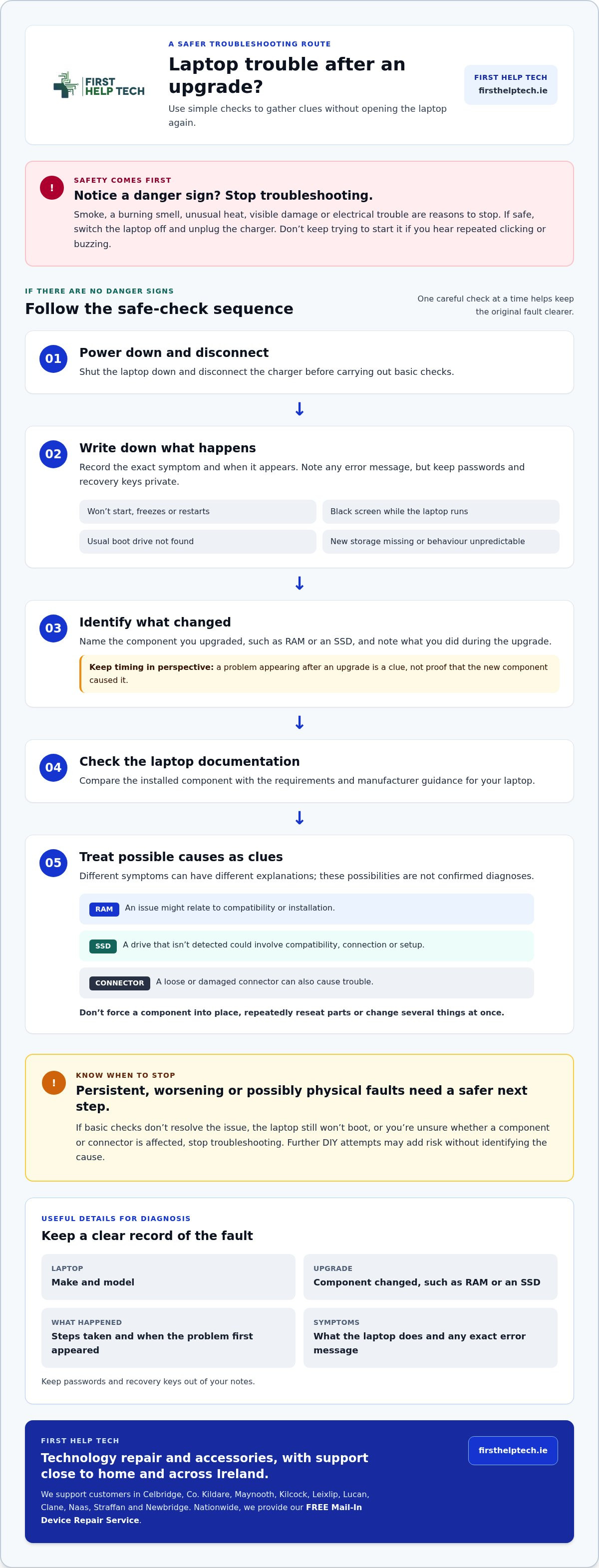
Stop if you notice smoke, a burning smell, unusual heat, visible damage or signs of electrical trouble. If it’s safe to do so, switch the laptop off and unplug it from the charger. Don’t keep trying to start it if you hear unusual noises, such as repeated clicking or buzzing. Repeated attempts could make a physical fault worse.
Stop powering a device that shows signs of heat or physical damage. Leave further inspection to a professional if you’re unsure what’s happening. We provide laptop repairs and can assess upgrade-related faults when basic observation isn’t enough to identify the cause.
How to troubleshoot laptop upgrade problems without adding risk
Keep your first checks simple. If there are no signs of heat, smoke or physical damage, use this sequence to gather useful information without opening the laptop again:
- Shut the laptop down and disconnect the charger.
- Write down exactly what happens when you try to use it, including when the symptom appears.
- Identify the component you changed, such as RAM or an SSD, and note what you did during the upgrade.
- Consult the laptop’s documentation for the component requirements and any manufacturer guidance.
Different parts point to different possibilities, not instant answers. A RAM issue might relate to compatibility or installation. A new SSD that isn’t detected could involve compatibility, connection or setup. A loose or damaged connector can also cause trouble. Don’t force a component into place, repeatedly reseat parts or change several things at once. Those steps can cause further damage and make the original fault harder to identify.
What can you check before trying another fix?
Compare the installed component with the requirements in your laptop’s documentation. Record the exact error message and the change you made, but don’t share passwords, recovery keys or other sensitive information. If these safe checks don’t resolve the problems after DIY laptop upgrade, we can provide professional diagnosis through our laptop repair support. We provide laptop repairs to customers across Ireland.
DIY laptop upgrade problems: when professional repair is the safer next step
A single, documented check can help clarify what changed. Stop troubleshooting if the fault persists, gets worse or may involve physical damage. If the laptop still won’t boot after basic checks, or you’re unsure whether a component or connector has been affected, further DIY attempts may add risk without identifying the cause. Professional diagnosis is the sensible next step for persistent problems after DIY laptop upgrade.
Before arranging help, gather details that make it easier to understand the fault:
- The laptop make and model, usually shown on its case or in its original documentation.
- The component you upgraded, such as RAM or an SSD.
- The steps you took and when the problem first appeared.
- The symptoms and any exact error messages. Don’t include passwords or recovery keys.
We provide laptop repairs to customers nationwide in Ireland. When requesting a repair or quote, share the details above so we have a clear starting point for assessing the reported issue.
What happens when you book a laptop repair?
Share the laptop’s fault and upgrade details when requesting a repair or quote. Tell us what you changed, what you’ve already checked and what the laptop does now. This gives our team a clearer starting point for assessing the reported problem. We provide laptop repair support when safe checks aren’t enough to resolve it.
Ready to take the next step? Book a laptop repair or request a quote and include the details you’ve recorded.
Move forward with a clear repair plan
An upgrade that causes trouble doesn’t mean the improvement you wanted is out of reach. A professional assessment can help distinguish a repair issue from a component compatibility or installation problem, so you can decide what to do next with better information. At First Help Tech, we provide technology repair to help you find a sensible route forward.
Our laptop repair service supports customers across Ireland. Share the laptop model, the component you changed and what happened afterwards when requesting help. Clear details give our team a useful starting point for assessing the fault. You don’t need to keep experimenting with the laptop to make progress.
If problems after DIY laptop upgrade are still stopping you from using your device, book a laptop repair or request a quote. We’ll help you take the next step with confidence.
Frequently Asked Questions
Could a DIY laptop upgrade put my files at risk?
Yes, files could be at risk if the storage drive is damaged, disconnected or accidentally erased during an upgrade. RAM itself doesn’t store your personal files, but an SSD may contain them. If the laptop still starts, back up important files before attempting further changes. If it doesn’t, avoid formatting or reinstalling the operating system until you understand what’s happening. For organisations handling sensitive business data across their devices, managed technology providers such as ITS Canada Inc offer dedicated cybersecurity and network protection to ensure critical assets remain safe from disruption.
Do I always need to update the BIOS after upgrading laptop RAM or storage?
No, a RAM or storage upgrade doesn’t automatically require a BIOS update. Check the documentation for your exact laptop model and follow an update only if the manufacturer recommends it for your configuration or issue. A BIOS update is different from installing an operating system update, so don’t try one as a general fix for problems after DIY laptop upgrade.
Should I remove the laptop battery before troubleshooting an upgrade problem?
Only remove the battery if it’s designed to be user-removable and the laptop’s instructions explain how to do so. Many batteries are internal, and opening the case or disconnecting one without the correct procedure can cause damage. For external checks, shut the laptop down and unplug its charger. Don’t open the device if you’re unsure how its power should be isolated.
Could a DIY laptop upgrade affect my warranty?
It could affect warranty coverage for a fault connected to the upgrade, but don’t assume that every warranty is automatically void. The outcome can depend on the laptop’s warranty terms, the work carried out and the cause of the fault. Check the documentation for your device and keep records of the upgrade, including the component fitted and any symptoms that followed.