

A dead pixel doesn’t automatically mean your laptop screen is about to fail. If your new laptop screen has dead pixels, a steady black spot usually means a pixel isn’t lighting up; a stuck pixel may remain red, green or blue. The distinction matters: a stuck pixel may respond to simple troubleshooting, while a truly dead pixel often requires screen replacement to remove it.
It’s frustrating to find a blemish on a brand-new display, especially when you’re unsure whether to try a fix or arrange a repair. Here’s how to identify the fault, decide whether a DIY attempt is sensible, and recognise when professional screen replacement is the practical option. Matching the replacement panel to your laptop’s exact screen configuration also matters, so you can make an informed decision.
Key Takeaways
- Use a full-screen colour test to distinguish a black, unlit dead pixel from a pixel stuck on one colour.
- Try cautious troubleshooting for a stuck pixel, but avoid heat or pressure that could damage the display.
- Screen replacement depends on matching the panel to your laptop’s model and original connector.
- Learn when a persistent screen fault is a reason to consider professional laptop repair.
What is a dead pixel?
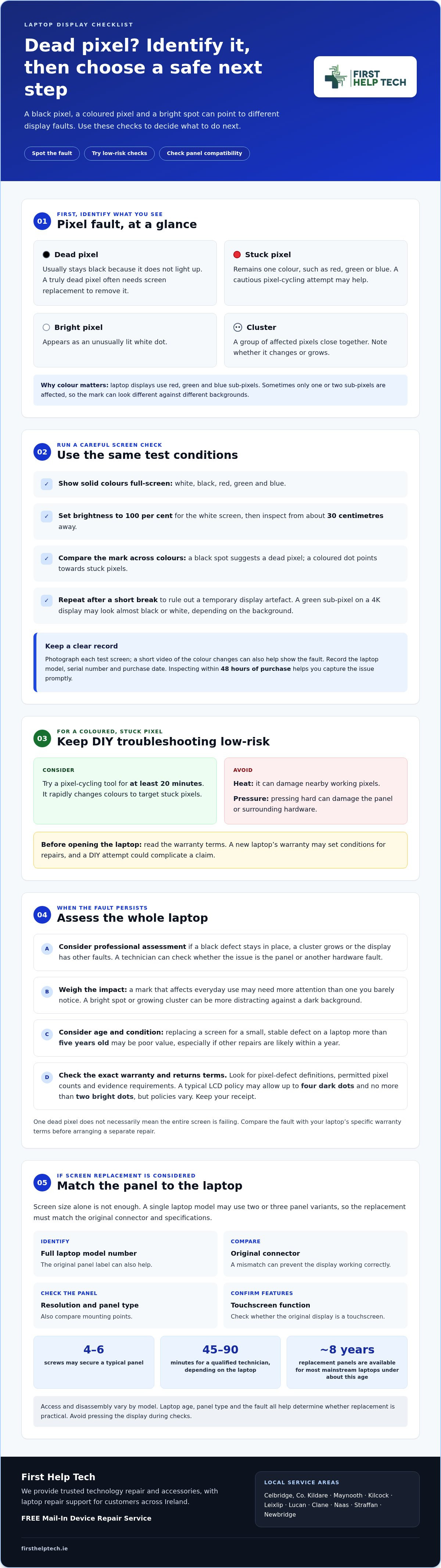
A laptop display contains millions of tiny pixels, typically made up of red, green and blue sub-pixels. A transistor controls the light output of each sub-pixel. A dead pixel stays black because it doesn’t light up, while a stuck pixel remains one colour, such as red, green or blue. Sometimes just one or two sub-pixels are affected, so the mark’s appearance changes with the background. A bright pixel appears as an unusually lit white dot. A cluster is a group of affected pixels close together.
To check a suspected fault, open full-screen solid-colour images, including white, black, red, green and blue. Set brightness to 100 per cent for the white screen, then inspect from about 30 centimetres away. A black spot across different colours suggests a dead pixel; a coloured dot points towards stuck pixels. A green sub-pixel on a 4K display may look almost black or white, depending on the background. Repeat the check after a short break to rule out a temporary display artefact.
To document dead pixels before contacting the retailer or manufacturer, photograph each test screen and record the laptop model, serial number and purchase date. A short video showing the colour changes can make the fault easier to assess. Inspecting within 48 hours of purchase helps you capture the issue promptly.
Check the retailer’s returns information and the manufacturer’s warranty terms for pixel-defect coverage. Look for definitions, permitted pixel counts and evidence requirements. A typical LCD policy may allow up to four dark dots and no more than two bright dots, but policies vary. Keep your receipt and compare the defect with the exact terms for your laptop model. One dead pixel doesn’t necessarily mean the entire screen is failing.
DIY versus professional screen repair
Start with low-risk steps. If the defect appears coloured rather than black, try a pixel-cycling tool for at least 20 minutes. It rapidly changes colours to target stuck pixels. Avoid heat: applying it to an LCD can damage nearby working pixels. Don’t press hard on the display either; pressure can damage the panel or surrounding hardware. Before opening the laptop, read the warranty terms. A new laptop’s warranty may set conditions for repairs, and an attempted DIY fix could complicate a claim.
Think about the whole laptop, not just the pixel. On a laptop more than five years old, replacing the screen for a small, stable defect may be poor value, especially if other repairs are likely within a year. Compare the screen fault’s impact with the device’s condition, performance and expected usefulness. If the laptop is still covered by warranty, review its pixel-defect terms before arranging a separate repair. For a persistent fault that needs diagnosis, request a laptop repair quote and describe what you see.
Laptop screen replacement and panel compatibility
Replacing a faulty display means matching the new panel to the laptop, not simply choosing one that looks the same. A single model may use two or three panel variants, so the replacement needs to match the original connector. Screen size alone isn’t enough: resolution, panel type, mounting points and touchscreen function can also affect compatibility. The manufacturer’s model number helps narrow down the right part, while the original panel label can provide useful identification details.
Replacement panels are available for most mainstream laptops under about eight years old. The laptop’s age, panel type and fault all help determine whether replacement is practical. A single dead or stuck pixel may not justify a new panel if it barely affects use; a bright spot or growing cluster can be more distracting against a dark background. Don’t press the display during checks, even gently, as pressure can damage the panel.
If the defect is persistent and you’re considering a compatible panel replacement, request a laptop screen repair quote with your model details and a description of the fault.
First Help Tech: Mobile Phone Repairs
First Help Tech repairs laptops with screen faults, including persistent pixel defects that need professional assessment. We can help determine whether the issue points to a screen replacement or another laptop repair. We support customers across Ireland with technology repairs.
Our FREE Mail-In Device Repair Service gives customers nationwide a way to access repair support. We also provide mobile phone repairs, tablet repairs and computer / PC repairs, alongside accessories for everyday devices. If you’re unsure what to do next, share your laptop model and describe what appears on the display. This helps explain the fault when arranging a repair.
Contact First Help Tech or visit firsthelptech.ie to discuss your laptop repair.
Choose a clear next step for your laptop
If a new laptop screen has dead pixels, let the effect on your everyday use guide your next step. A mark that interrupts reading, design work or video calls may need attention sooner than one you barely notice. Keep your laptop’s exact model details handy so the repair discussion can focus on a suitable solution rather than guesswork. That practical information helps you move from spotting a fault to deciding what to do.
At First Help Tech, we can help with laptop screen repair and other technology repairs. Tell us what you’ve noticed and share the model information when arranging a repair. Request a repair quote from First Help Tech, and take the next step towards a laptop that works comfortably for you again.
Frequently Asked Questions
Is it ever worth replacing a screen for a single dot?
Sometimes. Replacement is easier to justify when the dot is central, distracts during ordinary work or appears alongside a wider display fault. Consider how long you expect to keep the laptop and whether its other hardware remains dependable. A faint corner mark on a laptop used mainly for email may have little effect on daily use, while a visible defect during design work can be more disruptive.
What is a stuck pixel?
A stuck pixel is one whose colour output remains fixed instead of changing with the image. For example, it might stay red over a white document or green against a dark background. Its appearance can therefore vary with what’s on screen. Some stuck pixels may clear during use, so compare the same spot across different images before deciding what to do.
How can I confirm a new laptop screen has dead pixels or stuck pixels?
Compare a photo of the display with a screenshot opened on another device. If the mark appears in the photo but not the screenshot, the physical panel is the likely source; if it appears in both, it may be part of the image. Repeat the comparison with a plain document and a full-screen colour test, checking whether the mark stays black or remains one colour.
How many dead pixels are acceptable on a new laptop under manufacturer policies?
There’s no single allowance for every laptop. A typical LCD pixel policy may allow up to four dark dots and no more than two bright dots. Check the policy for your exact laptop model and panel, then compare its wording with the recorded dot count and type. If the count falls within the policy threshold, that may affect eligibility for a warranty replacement.
How can I test a laptop screen for dead pixels safely?
Use a full-screen test image and inspect the display in steady room lighting. Place the laptop on a stable surface, then switch colours with a mouse or trackpad rather than touching the panel. Check the same location against different backgrounds and save clear photos. Avoid pressure or heat; neither is necessary to identify a pixel defect.